1What AumChat is
AumChat puts a chat window in the corner of your website. A visitor types a question; your saved answers, then the AI, then a real person pick it up in that order, in the same thread. You reply from the dashboard in a browser, or from the Android or Windows app, and you get woken up when somebody is waiting.
Two kinds of people appear in this manual:
- You, the site owner. You sign in, set the site up, and answer messages.
- Your visitors. They only ever see the chat window. They never sign in and never see the dashboard.
1.1What you need before you start
- A website you can paste one line of HTML into. If it runs WordPress, there is a plugin that does it for you (see 3).
- An AumCreate account. AumChat has no sign-up form and no password of its own — you sign in with AumCreate, and AumChat never stores a password. The Account page says the same thing: Signing in again uses your AumCreate account; AumChat never stores a password.
- Nothing else. The AI, the website reader and the product catalogue are all included from the free plan onward, in smaller amounts (see 14).
1.2The eight places in the dashboard
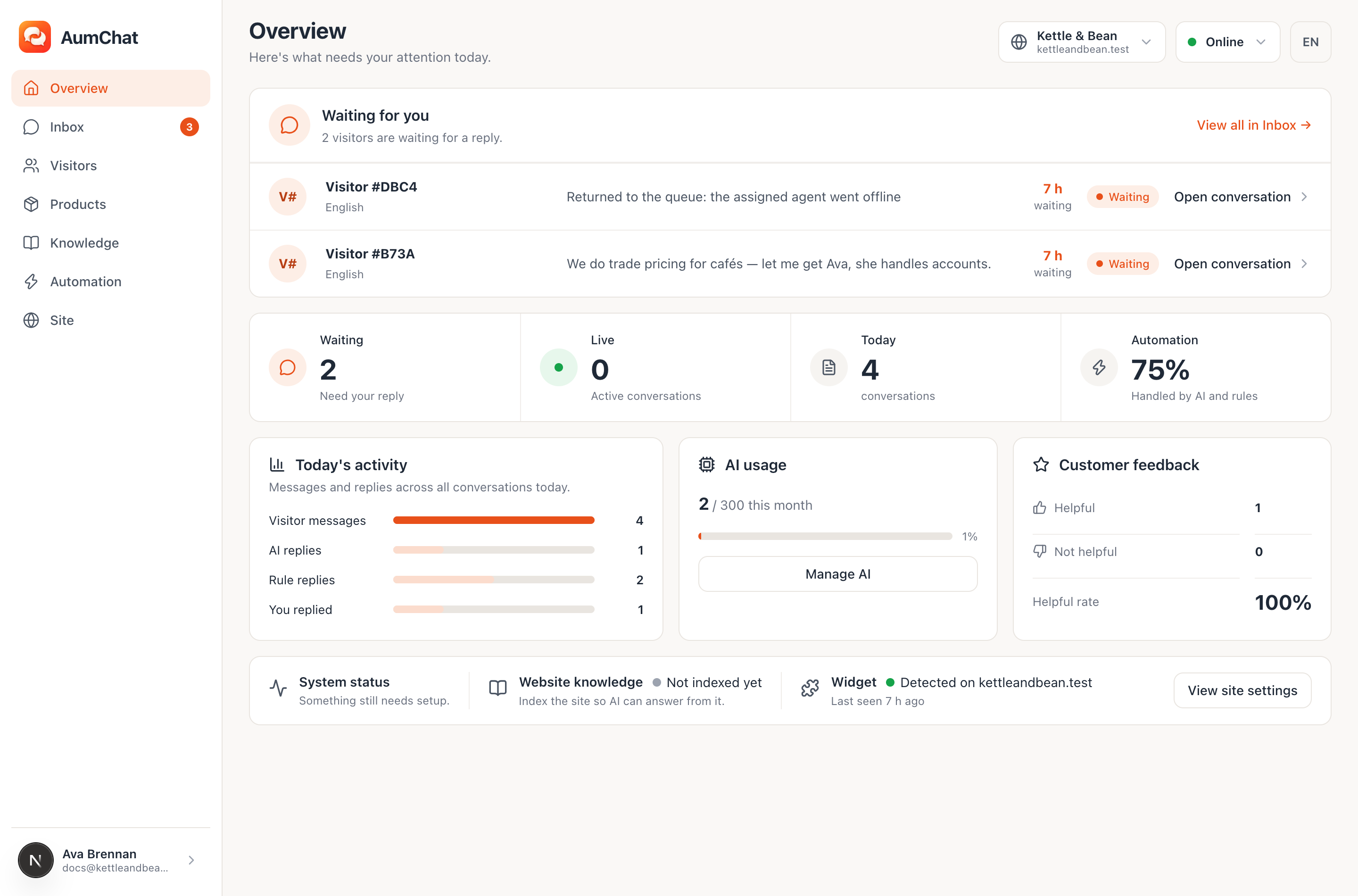
| Where | What it is for |
|---|---|
| Overview | Who is waiting right now, today's numbers, how much the AI answered by itself |
| Inbox | Every conversation, and where you reply |
| Visitors | Who has been on your site, their history, blocking and deletion |
| Products | The catalogue the AI quotes from and you send cards out of |
| Knowledge | What the AI has read: your website, plus notes you wrote by hand |
| Automation | Saved answers that reply without the AI, and your own shortcuts |
| Site | Everything about one site: install snippet, appearance, hours, AI, team, alerts, retention |
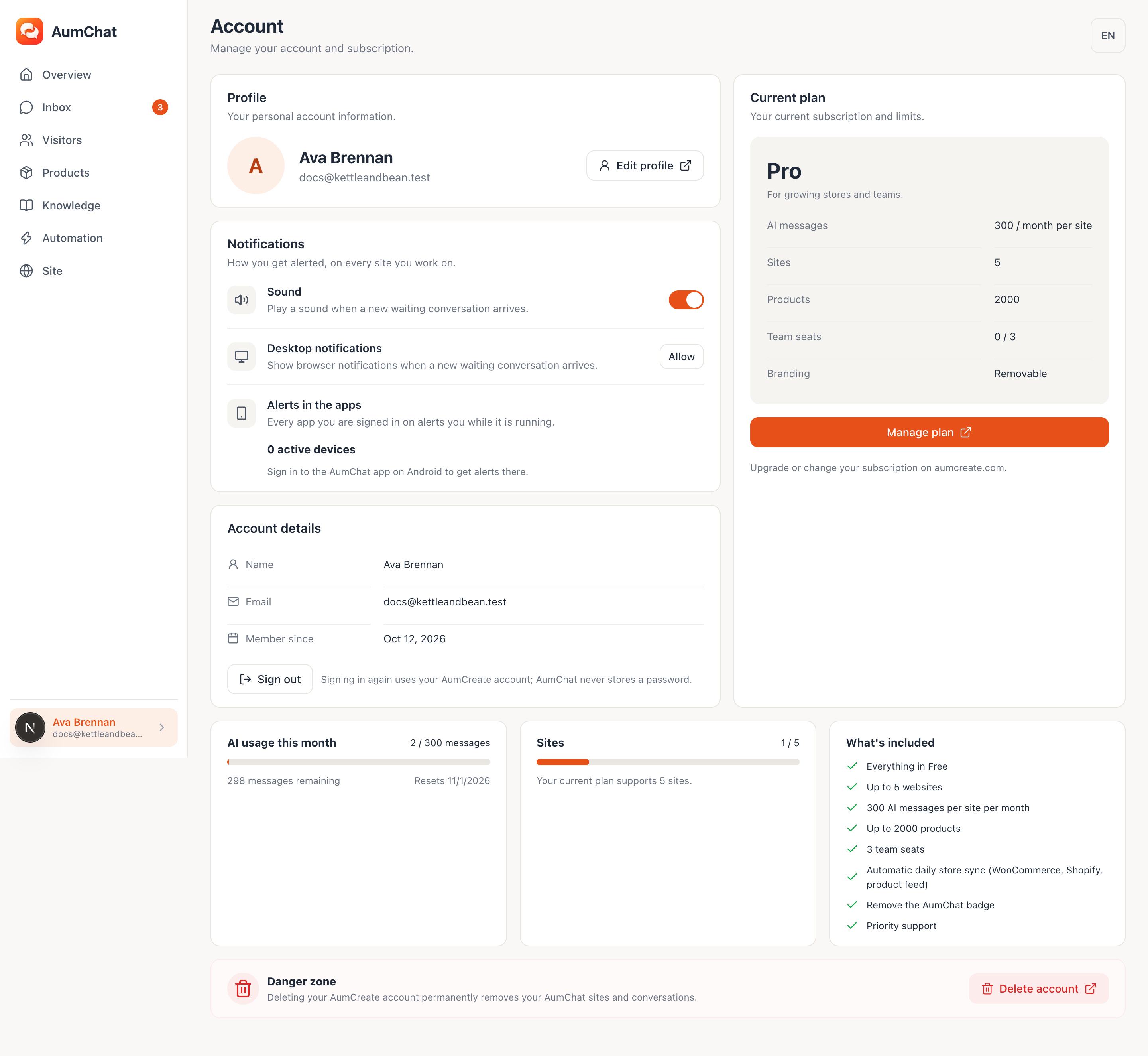
| Account | Your profile, your plan, your alert preferences |
Products, Knowledge, Automation and Site are hidden for team members who only answer messages (see 12.2).
2Put the chat window on your site
2.1Paste one line
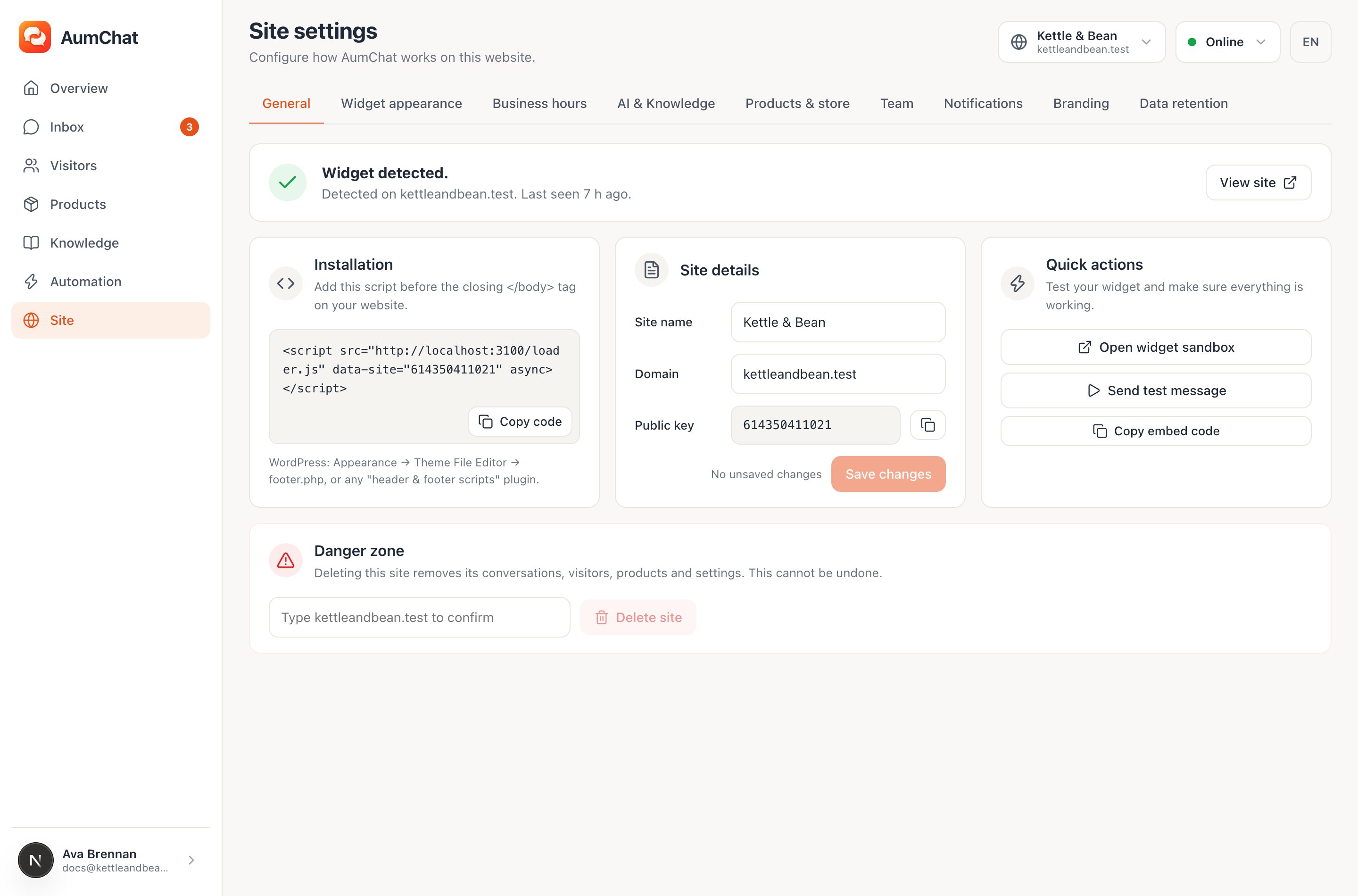
Open Site, stay on the General tab, and copy the snippet under Installation. The dashboard describes where it goes: Add this script before the closing </body> tag on your website.
<script src="https://chat.aumcreate.com/loader.js" data-site="YOUR-SITE-KEY" async></script>The key in that snippet is this site's Public key. It is not a secret — it is visible in your page source by design — but it only works on the domain you registered. If you load it anywhere else the server refuses with a plain message naming the domain it expects, which is what you will see while you are still testing.
Once the snippet has loaded even once, the same tab turns into Widget detected. with the domain and the time. Until then it says Waiting for the widget to load on your site….
2.2On WordPress, use the plugin instead
Everything in section 3. The plugin connects without you copying a key, and it can do things one line of HTML cannot: decide which pages the window appears on, keep it away from signed-in staff and from checkout, and send your products across.
If you would rather not install anything, the snippet above still works: WordPress: Appearance → Theme File Editor → footer.php, or any "header & footer scripts" plugin.
2.3Try it without touching your website
Site → General → Quick actions → Open widget sandbox opens the real chat window on a page of ours. It is the real thing — the messages you send land in your Inbox — so it is also how you send yourself a first message before any visitor arrives.
3WordPress
The AumChat plugin is free on wordpress.org. Install it the usual way — Plugins → Add New → search AumChat — and it adds one page under Settings → AumChat.
Everything the plugin does is about this WordPress site: whether the window appears, on which pages, and which products get sent. Everything about the chat itself — how it looks, what it answers, business hours, your team — stays in the dashboard, because those follow the site and apply everywhere it is installed. The plugin says so on its own page: How the widget looks, what it answers, business hours and your team are set in the workspace, not here.
3.1Connecting
Press Connect to AumChat. You sign in, pick the site, and come back; the key is filled in for you.
If you would rather not leave WordPress, there is Rather not leave WordPress? Paste the site key instead. The key is on the same Site → General tab as the snippet, and the field will tell you if you paste something that is not one: That does not look like a site key. It is 6 to 40 letters and digits.
Two messages here are worth recognising, because they look like failures and only one is:
- This site key belongs to …, and AumChat only serves the widget on the domain saved with it. The key is fine; the domain on it is not this site. Change the domain in the dashboard, or connect the site that matches.
- Site key saved, but this server could not reach AumChat to confirm it. Your server could not make an outbound request. Saved anyway, and the widget will still load for visitors — because they load it from their own browser, not from your server.
Once a visitor has loaded a page, the plugin page turns into Connected. The widget is live on your site. Before that it says Connected. Open your site in a browser once and the widget will appear. Check again re-asks, and it reports what the server actually saw: AumChat last saw the widget on this site … ago.
3.2Choosing where the window appears
Three choices under Where the widget appears:
| Choice | Use it for |
|---|---|
| Every page | The usual choice. |
| Every page except the ones listed below | For a checkout, a landing page, a form you do not want interrupted. |
| Only the pages listed below | For trying it on one page first. |
The list under Exceptions takes paths: One per line. A path covers everything under it, so /shop also covers /shop/mugs. Use / for the home page alone. Pasting a full address works too.
Two switches sit below it:
- Hide it from signed-in users with these roles —— Most people tick Administrator, so their own widget stops following them around while they work.
- Hide it on the cart and checkout —— Some shops prefer nothing moving while someone is paying.
When a rule cannot express what you want, there is a filter that decides per request:
add_filter( 'aumchat_show_widget', function ( $show, $site_key ) {
    return is_singular( 'event' ) ? false : $show;
}, 10, 2 );3.3Sending your products across
The plugin finds your shop's products and offers to send them, so the AI can answer questions about them and show product cards. It reads published products only — drafts and private ones are not sent, and if nothing is published it tells you plainly: No published products were found, so nothing was sent.
This needs a second credential, not the site key: Copy it from Products in your AumChat workspace. It is a secret — unlike the site key, it is not public. Then Sync products now. Afterwards the page reports Last sync: … products, … ago.
Two caps can bite, and the plugin names which one did:
- this plugin syncs the first 2000 products — a cap in the plugin itself.
- were refused because your AumChat plan has a lower product limit — your plan's catalogue size (see 14).
3.4Turning it off
Disconnect removes the window from your site. Forget the saved token (stops product sync) drops the product credential and leaves everything else alone — useful when you want the chat but no longer want the catalogue kept current from here.
Removing the plugin does not remove anything from AumChat. Your conversations, products and settings live in the dashboard, and deleting them is section 13.
4Answering messages
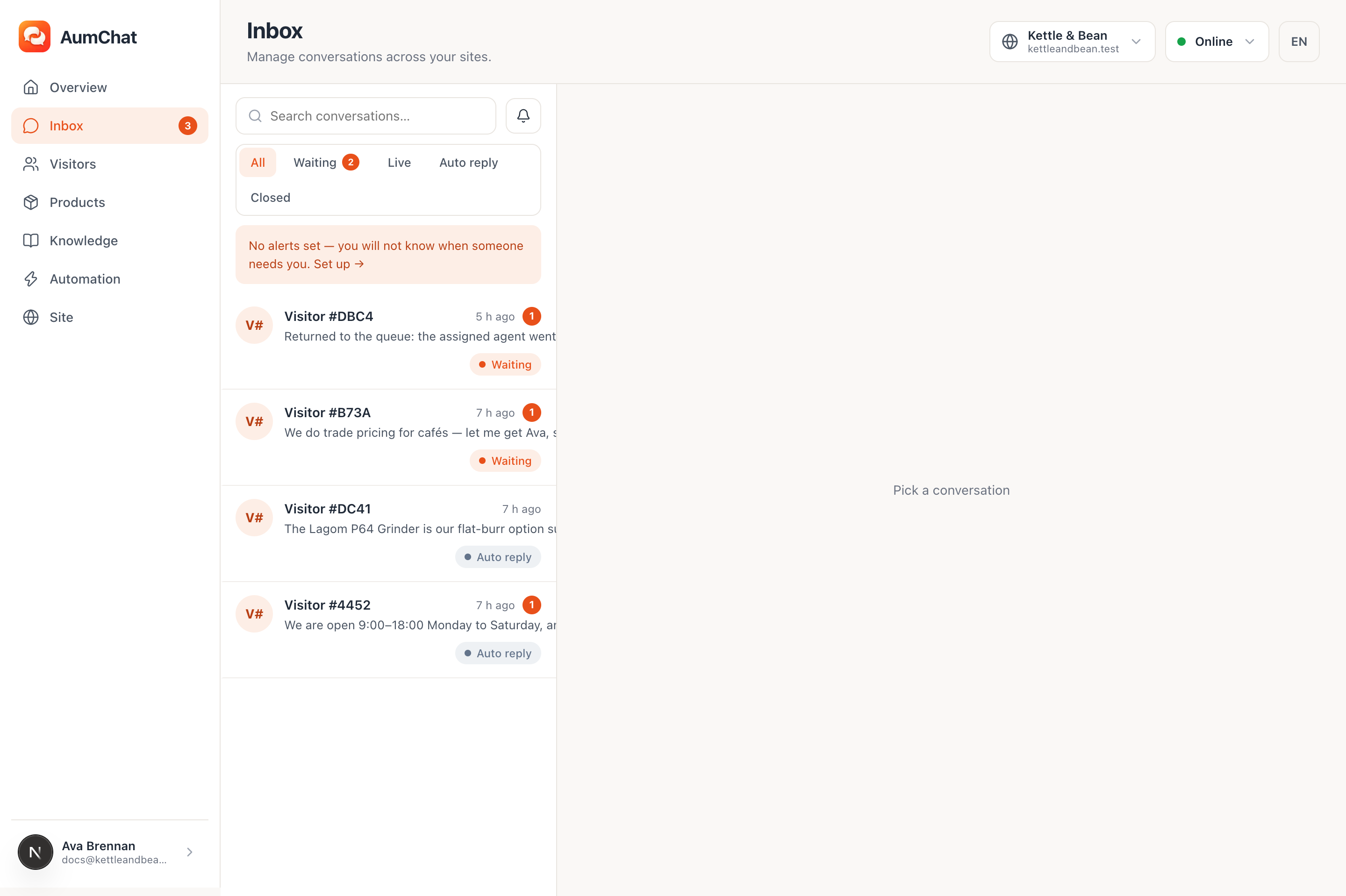
4.1The four states a conversation can be in
| State | What it means |
|---|---|
| Auto reply | Saved answers or the AI are handling it. Nobody is needed yet |
| Waiting | A visitor asked for a person, or nothing could answer them. This is the one that calls you |
| Live | You are in it. Saved answers and the AI stay out of the way |
| Closed | Finished |
A conversation moves itself: it goes to Waiting when the visitor asks for a person or when nothing answered them, and back to Live the moment you reply. Seven days with nothing happening closes it, and a visitor speaking again reopens it.
4.2Taking over
Open the conversation in Inbox and reply. That is all it takes — replying is what moves it to Live, and from then on neither your saved answers nor the AI will speak over you. Put it back by closing it or by handing it back to automatic answering.
Before you take over a long one, Summary writes a sentence or two about what the visitor wants, so you do not have to read the whole thread to pick it up.
4.3What you can send
- Text.
- Images and PDFs, up to 10 MB, in both directions. Visitors see Send an image or PDF on their side.
- A product card — pick something out of Products and the visitor gets the picture, the price and a link, with a mark on it when it is out of stock.
- A saved shortcut. Type a forward slash in the message box to pull up the ones you wrote in Automation.
Both sides see a read marker, so you can tell whether the visitor has actually seen your reply.
4.4Things that hang off a conversation
- Tags, as many as you like, free text.
- A private note. Only you and your team see it. The visitor never does.
- Export, which writes the whole thread out as a text file.
- The visitor's own rating. After a conversation they can mark it Helpful or Not really and add a sentence.
5Who answers first
This is the one thing worth understanding properly, because everything in 5 to 8 is really about tuning it.
When a visitor sends a message, exactly one of these happens, checked in this order:
- They pressed the "talk to a person" button. Nothing else is consulted. The conversation goes to Waiting and you are called.
- A saved answer matches (see 8.1). It replies. If that answer was the kind that hands over, you are called as well.
- The AI tries. It only runs if the AI is switched on for this site, you have given it something to read, and you are inside your monthly allowance. It searches your pages, notes and products, writes an answer, and then that answer is checked against the sources it claims to come from. If the check fails, the answer is not sent.
- Nothing answered. The visitor gets the line you wrote under When AI cannot answer, and you are called.
5.1What the visitor sees when the AI cannot help
Whatever you typed into When AI cannot answer on the Widget appearance tab. The tick box next to it decides whether that also calls you:
- Ticked (the default, and what happens if you leave the box empty): every unanswered question reaches you.
- Unticked: the visitor gets a "talk to a person" button instead and nobody is called until they press it. The dashboard puts it plainly: Leave the box ticked and every unanswered question reaches you. Untick it and the visitor gets a “Talk to a person” button instead — quieter for busy sites, but nobody is called until they ask.
5.2What language the reply comes back in
The AI answers in the visitor's own language, whatever language your website and your notes are written in. It has to work this way: a shop with English notes still gets questions in Japanese.
There is one case that needs a second rule. Sometimes a visitor's message carries no language at all — they paste an error message, a model number, a bare URL, a single number. Then the AI answers in the language of the page they are reading, because that is the only signal left.
6Teaching the AI
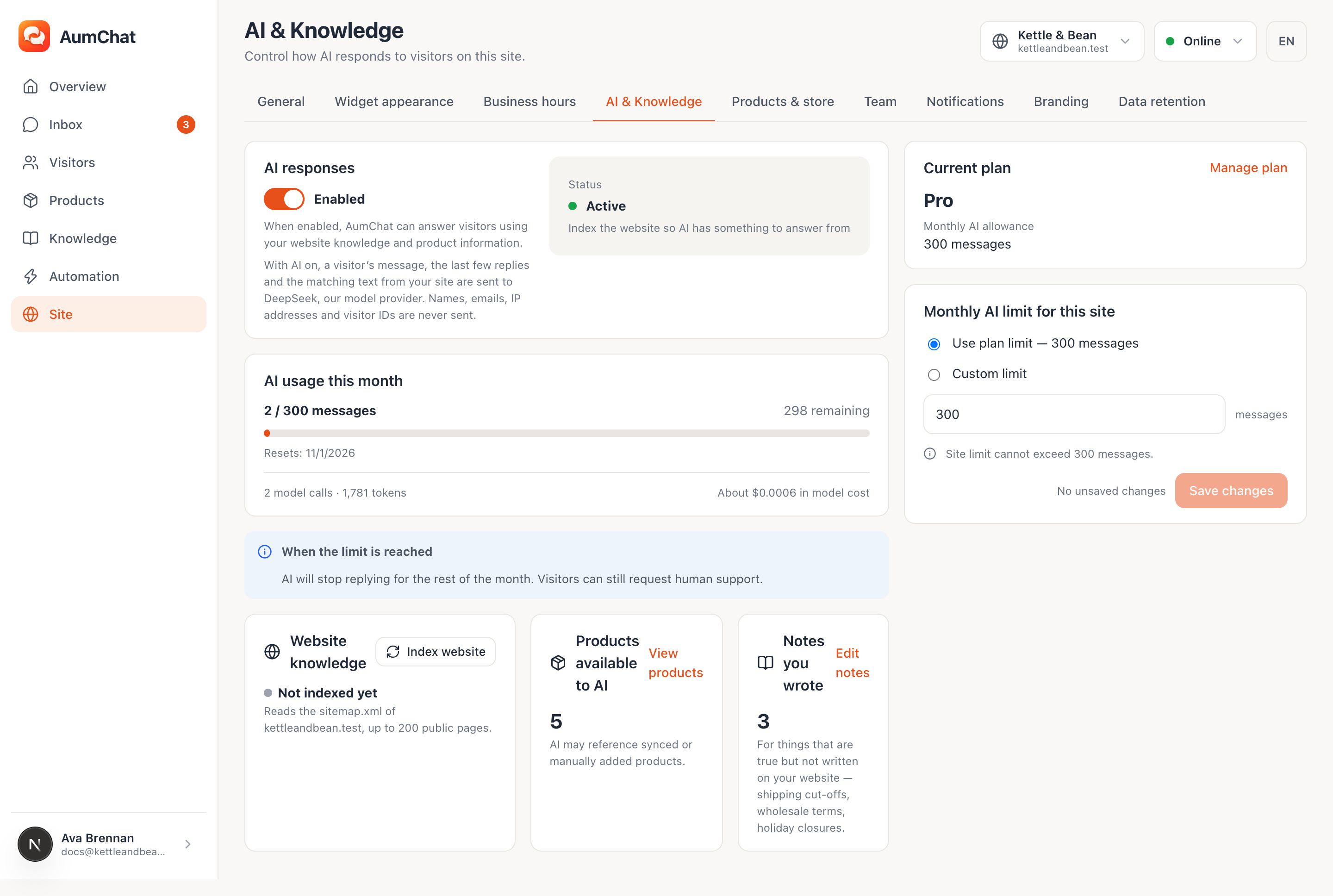
Site → AI & Knowledge. Three sources, and they do different jobs.
6.1Your website
Point it at your site and it reads your sitemap.xml: Reads the sitemap.xml of your site, up to 200 public pages. It keeps the text in passages, and the AI quotes those passages and links back to the page it took them from.
Re-read it after you change your pages. Nothing re-reads it on its own.
6.2Notes you wrote
Knowledge is for For things that are true but not written on your website — shipping cut-offs, wholesale terms, holiday closures. This is the most useful half for most shops, because the questions people actually ask tend to be the ones the website never answers.
6.3Products
The catalogue (see 7) is a knowledge source too: AI may reference synced or manually added products. Each product can carry Notes for AI, which visitors never see, — "we do not ship this one overseas" is the example worth copying.
6.4Checking the answer before it goes out
Two things happen to every AI answer before a visitor sees it, and they are both worth knowing about because they explain the silences:
- It must be grounded. The answer is checked against the passages and product fields it claims to come from. An answer that is not supported is thrown away rather than sent.
- Prices and links count as source text. If the AI says $899 and the product card says $899, that is grounded.
When an answer is thrown away, the conversation falls through to step 4 — the visitor gets your fallback line and you get called. From the outside this looks exactly like "the AI did not know", which is the intent.
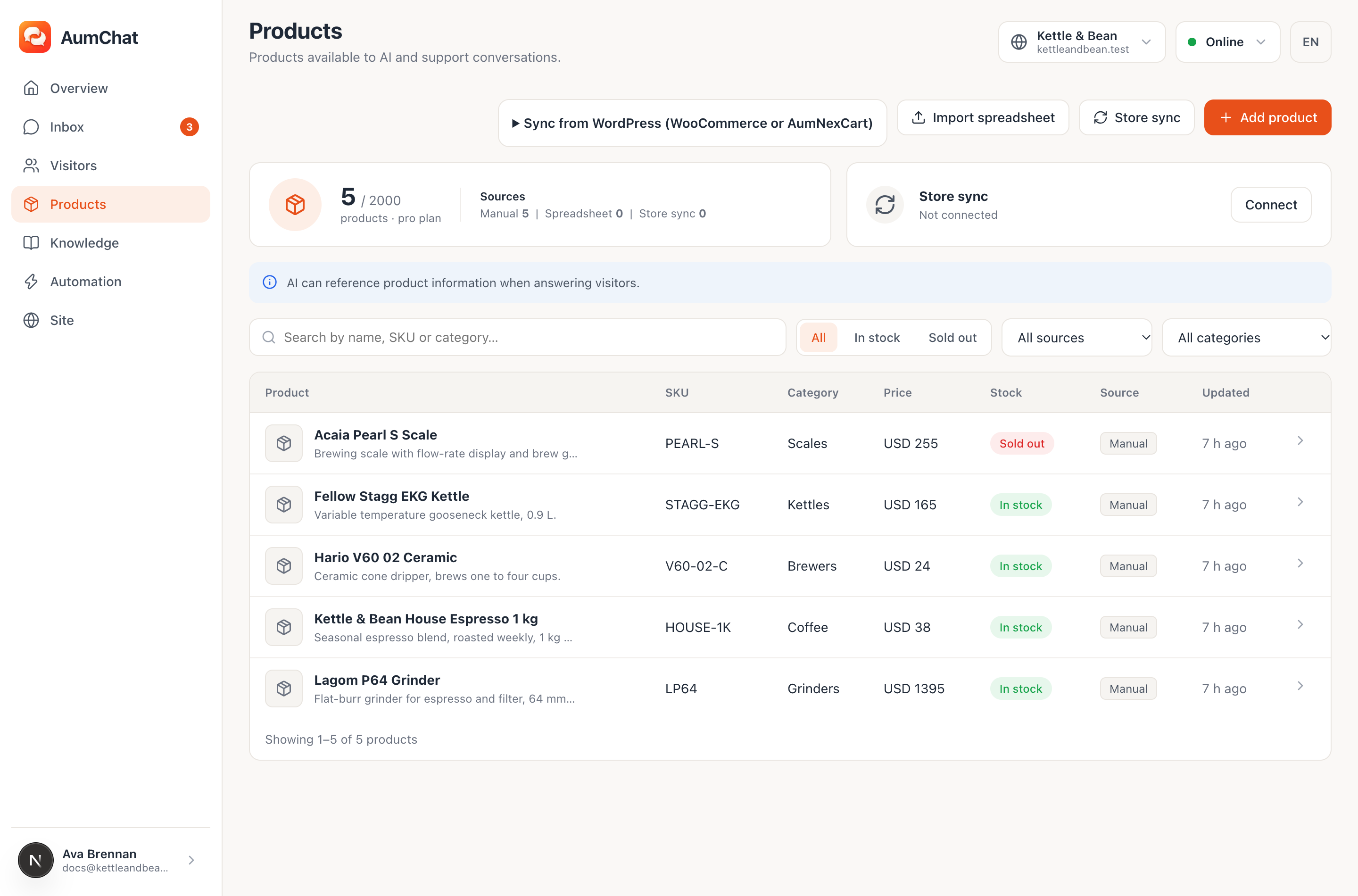
7Products
Products holds everything in one list: Manual products, spreadsheet imports and synced items all live in one list.
7.1Three ways in
- By hand, one at a time.
- A spreadsheet. Download the template, fill it in, import it. Any shop can do this.
- Store sync. Point it at your store and it keeps itself current: Connect your store and products stay up to date. Synced products are read-only here; edit them in the store. WooCommerce, Shopify and a Product feed are all supported, it runs Every 24 hours, and synced items are read-only here on purpose — edit them in the store, or your next sync will undo you.
Store sync needs Pro or above. On the free plan the dashboard says so and points at the other two routes: Automatic store sync is included in Pro. On the free plan you can add products by hand or import a spreadsheet.
7.2What a product carries
Name, price, currency, category, SKU, link, image, a one-line summary, a description, specifications, selling points, and whether it is in stock. Plus the AI-only note from 5.3.
8Automation
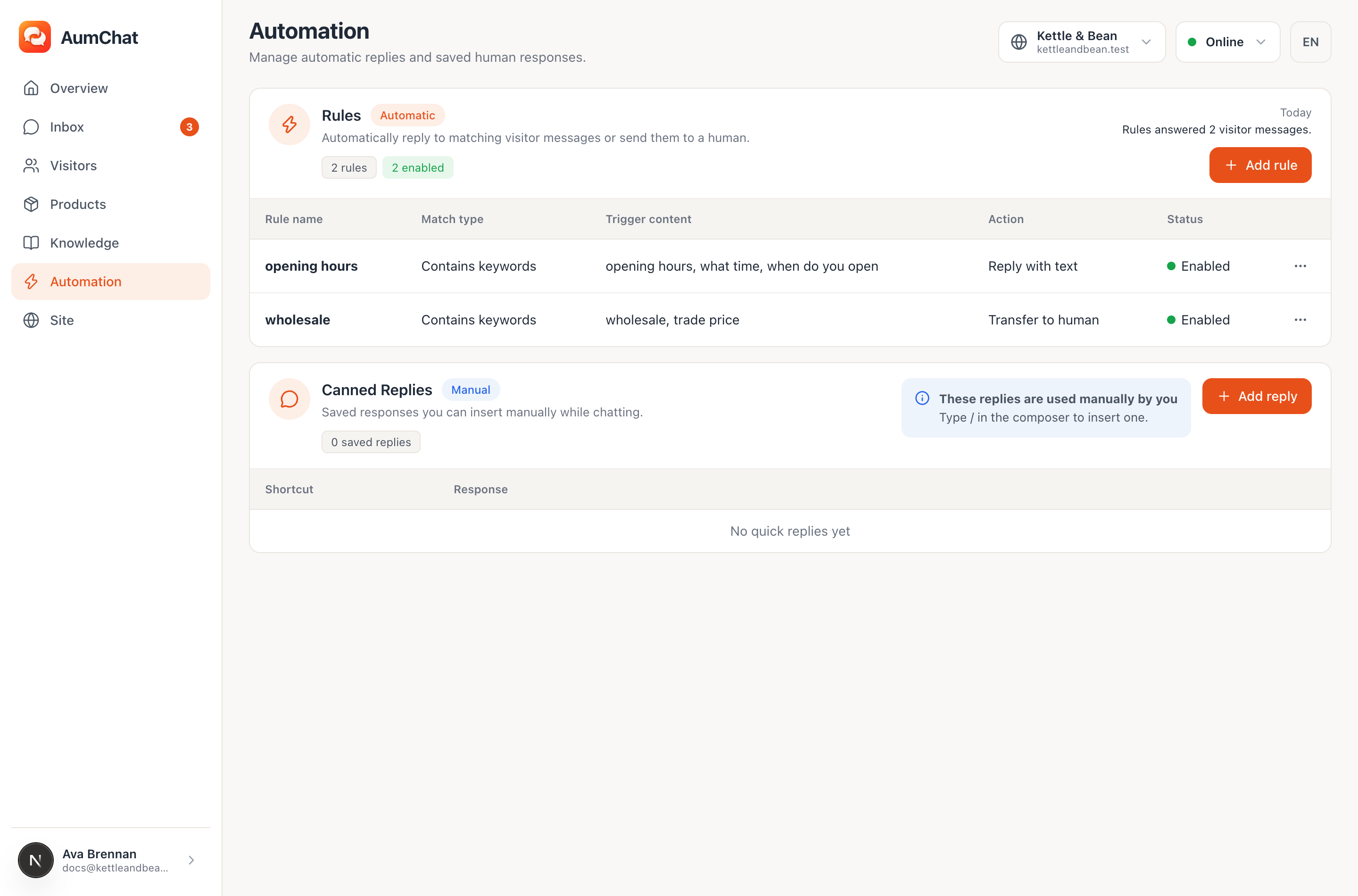
Site → Automation. Two different things live here and they are easy to mix up.
8.1Saved answers
These reply without the AI and without you, which makes them the right tool for the handful of questions that have exactly one correct answer: opening times, where you ship, where the returns page is.
- Matching is either "contains these words" (comma separated) or "is exactly this".
- The action is either "reply with this text" or "fetch a person".
- Each one has a switch and a position in the order.
>
🔴 Even with whole-word matching, keyword rules will sometimes fire on something you did not mean. A rule on "return" legitimately matches "DeepSeek returned malformed JSON", because "returned" really is a form of "return". A person can see that sentence has nothing to do with refunds; a keyword cannot. Keep saved answers for questions with exactly one answer, and let the AI have the rest.
8.2Your own shortcuts
Not the same thing. These are templates for you, not automatic replies: a short word like "ship" and the paragraph it stands for. You pull them up with a forward slash in the message box, and they are the same on every device you are signed in on.
9The chat window
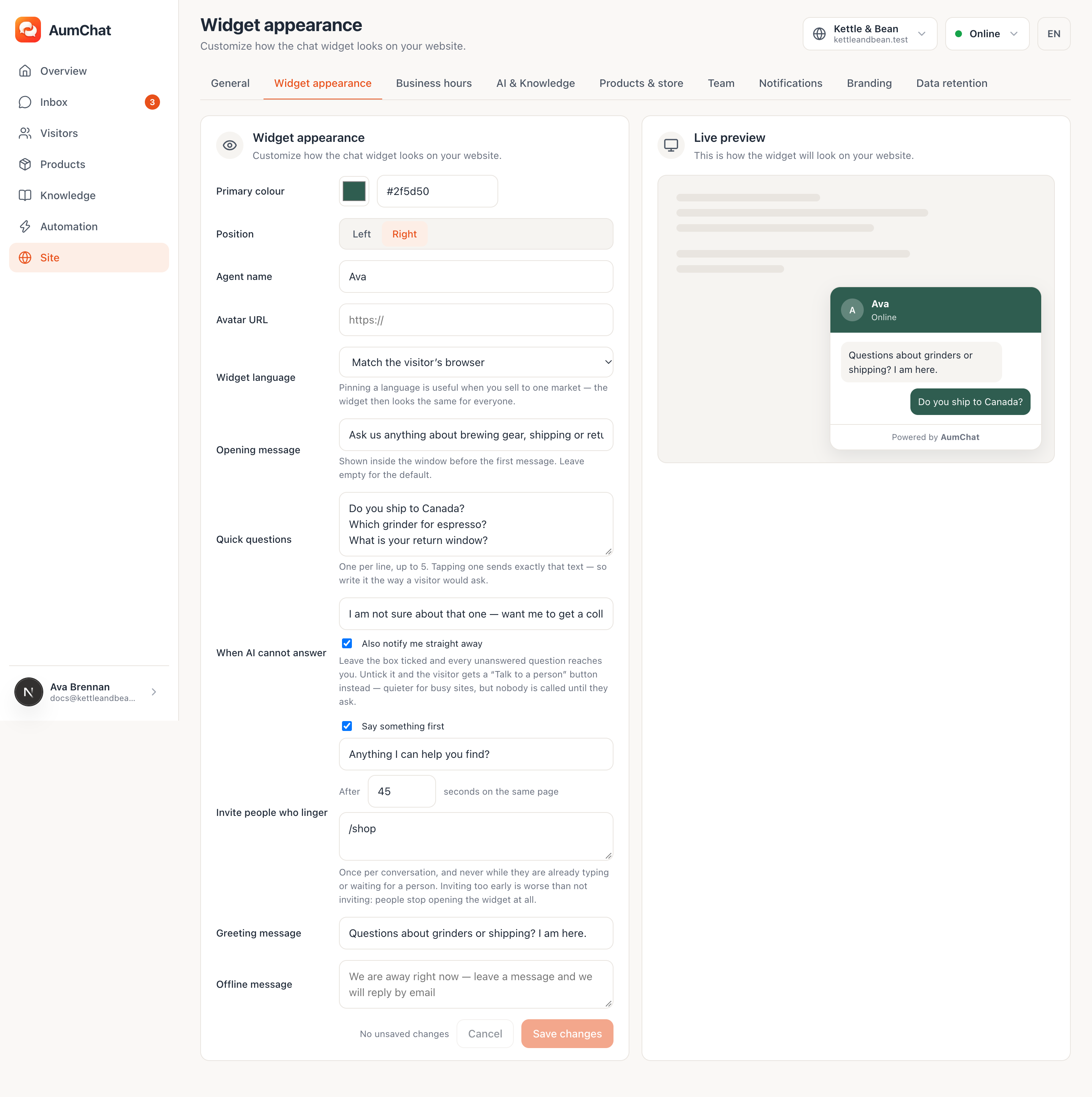
Site → Widget appearance. Customize how the chat widget looks on your website. There is a Live preview next to the settings, so you do not have to reload your own site to see a change.
9.1How it looks
Primary colour, Position (left or right), Agent name and Avatar URL. Leave the name empty and visitors see Support.
9.2What language it speaks
The chat window itself ships in 43 languages, and by default it follows the visitor: Match the visitor’s browser. You can pin one instead, and the dashboard says when that is the right call: Pinning a language is useful when you sell to one market — the widget then looks the same for everyone.
9.3The four things it can say before the visitor does
These are separate settings and they fire at different moments. It is worth being clear which is which:
| Setting | When the visitor sees it |
|---|---|
| Greeting message | Floating next to the closed button, before they open anything |
| Opening message | Inside the window, above the message box, before their first message |
| Quick questions | Inside the window, as buttons. One per line, up to 5. Tapping one sends exactly that text — so write it the way a visitor would ask. |
| Invite people who linger | After a number of seconds on the same page, optionally only on paths you list |
9.4The badge
The free plan shows "Powered by AumChat" badge at the bottom of the window and it cannot be switched off. Removing the badge is included in Pro.
10Business hours
Site → Business hours. When enabled, AumChat uses this schedule to decide whether the widget shows as open or offline. Pick a Timezone — Business hours are evaluated using this timezone. — then the days and times.
Outside those hours the window switches to its offline wording, which you write in Offline message, and visitors are asked for an email address so you can reply after the fact.
There is a second switch worth finding: Also notify me outside business hours. Turn it off and Off: outside hours you only get an email. No app alerts, no sound. Conversations still wait in the inbox.
11Being told that somebody is waiting
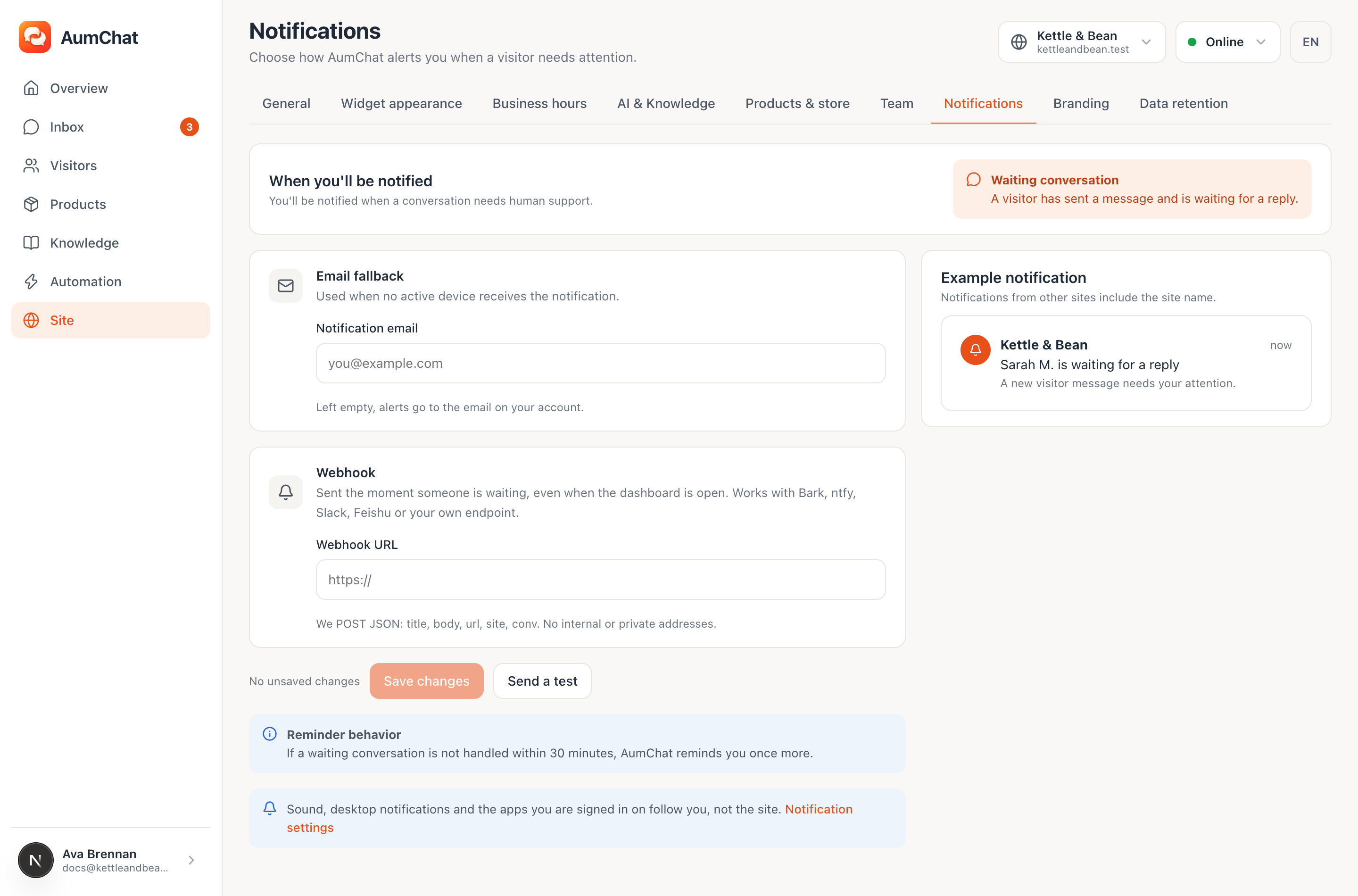
Site → Notifications.
11.1What triggers it
A conversation entering Waiting — the visitor asked for a person, or nothing could answer them. The same conversation will not call you twice within ten minutes. And: If a waiting conversation is not handled within 30 minutes, AumChat reminds you once more.
11.2How you get told
AumChat tries the quietest thing that will actually reach you, and stops as soon as one works:
- You already have the dashboard open and are looking at it — it rings there, with a desktop notification.
- Otherwise, the apps you are signed in on.
- Otherwise, email. Used when no active device receives the notification. Set a Notification email per site, or Left empty, alerts go to the email on your account.
11.3Webhooks, which behave differently
Webhook is Sent the moment someone is waiting, even when the dashboard is open. Works with Bark, ntfy, Slack, Feishu or your own endpoint. It does not take part in the chain above — it always fires. We POST JSON: title, body, url, site, conv. No internal or private addresses.
Send a test runs the whole thing and tells you, per channel, what actually happened.
11.4Several sites
Sound, desktop notifications and app alerts follow you, not one site: Sound, desktop notifications and the apps you are signed in on follow you, not the site. Notifications from other sites include the site name.
Inside the dashboard, a site other than the one you are looking at having somebody waiting shows up as its own card on Overview and a line in Inbox, and the row flashes when its count goes up.
12Working with other people
Site → Team.
12.1Seats
Seats come from your plan and they are counted across every site you own: none on free, three on Pro, ten on Business. Free is a hard stop, not an omission from a table — the first invitation on a free plan is refused.
12.2The two roles
| Role | Can do |
|---|---|
| Admin | Everything on that site, including settings and inviting other people |
| Agent | Answer messages. Products, Knowledge, Automation and Site are not theirs to change |
Somebody on your team sees the site under Sites you're part of on their own Account page. Their plan does not matter — a site's allowances are the owner's.
13Visitors, and deleting things
13.1What is kept about a visitor
They never sign in, so there is an anonymous identifier and the things a browser sends: the page they are on, where they arrived from, their language, their browser, their country. Plus how many times they have been back. A name and an email only exist if the visitor typed them — the window asks for an email once when a conversation is handed to a person, and it can be skipped.
13.2Blocking and deleting
Blocking stops that visitor from sending anything. Deleting a visitor removes their conversations, their messages and their files, and cannot be undone.
13.3Deleting by itself
Site → Data retention → Keep conversations for, from one month to Forever. Closed conversations older than this are deleted, with their messages and files. Visitors with nothing left are deleted too. It runs nightly: Runs every night. You can also delete a single visitor at any time from Visitors.
Only closed conversations past the period are touched. An open conversation is never deleted by the clock.
13.4Deleting a site, and deleting your account
Danger zone on the General tab: Deleting this site removes its conversations, visitors, products and settings. This cannot be undone. You have to type the domain to confirm.
Your account itself is not deleted here, because it is not ours: it belongs to AumCreate, and the button on Account sends you there. Deleting your AumCreate account permanently removes your AumChat sites and conversations.
14Plans, and what runs out
Plans are bought and changed on aumcreate.com, not here: Upgrade or change your subscription on aumcreate.com. A change takes effect immediately — you do not wait for anything to refresh.
| Free | Pro | Business | |
|---|---|---|---|
| AI messages per site per month | 30 | 300 | 2000 |
| Sites | 1 | 5 | 20 |
| Products | 50 | 2000 | 20000 |
| Team seats | 0 | 3 | 10 |
| Store sync | no | yes | yes |
| Can the badge be removed | no | yes | yes |
Account shows what you have used this month and when it resets. A single site can be given a lower ceiling of its own under Monthly AI limit for this site, which is the setting to reach for when one site should not be able to spend the whole allowance.
14.1What a visitor sees when the allowance is gone
Nothing about allowances. The AI simply does not run, so the conversation falls through to step 4 of section 5: the visitor gets your fallback line and you get called. It looks like "the AI could not answer this one", which is the intended behaviour — your visitors are not the right audience for your billing.
There are also two brakes that exist to stop runaway loops rather than to ration anything: a per-conversation hourly cap, and a per-site daily cap. On the free and Pro plans the monthly allowance always runs out first, so neither brake can reach you before it does.
15The apps
Everything above is the dashboard in a browser, which is where setting a site up happens. There are also apps for Android and Windows, and they are a deliberate subset: answer messages, see the numbers, change a few settings. They sign in through your system browser against the same AumCreate account.
They are built so that a reply typed on one shows up everywhere else: unread counts, read markers and your saved shortcuts are the same on every device.
16When something looks wrong
16.1The window does not appear on my site
In order:
- Site → General. Does it say Widget detected.? If it does, the server has seen your snippet load, and the problem is on the page rather than in the setup.
- Open the page and look at the browser console. If the key is being loaded from a domain other than the one you registered, the server refuses it and says which domain it expected. This is the single most common cause.
- Try Open widget sandbox. If the window works there, the snippet placement is the problem, not the site.
16.2The AI is not answering
It needs all of these at once, and the dashboard shows each one on the AI & Knowledge tab:
- Switched on for this site.
- Something to read — Products available to AI, Notes you wrote, or an indexed website. With all three empty, the AI is skipped deliberately rather than asked to guess.
- Monthly allowance remaining.
If all three are fine and visitors still land on your fallback line, the likely answer is 5.4: an answer was written and then thrown away for not being supported by your own material. Adding a note that actually answers the question fixes more of these than anything else.
16.3I am not being told about waiting conversations
Work down the chain in 11.2, in that order. The two that catch people:
- A dashboard open somewhere else makes you "present", so nothing is sent anywhere else.
- Business hours with Also notify me outside business hours switched off means email only, by design.
Send a test on the Notifications tab reports each channel separately, which is faster than guessing.
16.4Today's conversation count looks too high
It counts conversations that had a message in them. If a number looks impossible, the thing to check is whether you have been testing — the sandbox in 3.3 is real, and the conversations it creates are real too.